Digital Gift Cards & E-Vouchers: Instant Delivery Online
How To use Digital Gift Cards?
Digital Gift Cards, also known as e-Gift Cards or virtual gift cards, are incredibly easy to use because they don’t require you to carry a physical card.1 The method of use generally falls into two categories: Redeeming to an Account or Applying at Checkout.
Here is a comprehensive guide on how to use them, both online and in-store:
1. Using Digital Gift Cards Online
This is the most common way to use a digital card.
A. Apply to an Account Balance (Best Practice)2
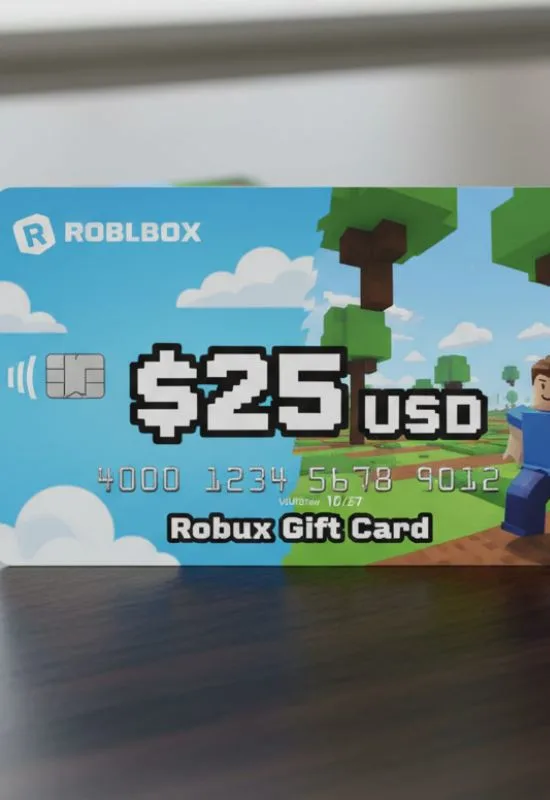
For major online platforms (like Amazon, Apple/iTunes, Google Play, Starbucks, or Roblox), the best method is to redeem the code directly to your account balance first.
Locate the Code: Find the unique 16-digit (or longer) code and the 4-digit PIN (if required) in the delivery email or text message.3
Navigate to Redemption Page: Log in to your account on the retailer’s official website or app. Look for sections like “Gift Cards,” “Redeem Code,” or “Add Funds.”4
Enter Code: Enter the code and PIN, and click “Apply” or “Redeem.”5
Shop: The card’s value is added to your account balance and will be automatically applied as the first payment method during your next checkout.
B. Apply Directly at Checkout
For most other retailers, you apply the card during the purchase process:6
Shop & Cart: Add items to your shopping cart on the retailer’s website.
Payment Step: Proceed to the checkout page until you reach the Payment section.
Enter Details: Look for a field labeled “Gift Card,” “Promo Code,” or “Voucher.”
Input: Enter the gift card number and the security PIN/code from your email.
Apply: Click “Apply.” The amount will be deducted from your total.
Finalize: If a balance remains, pay it with a credit card. If a balance remains on the gift card, you can use it for a future purchase.
2. Using Digital Gift Cards In-Store
Many digital gift cards can also be used in physical stores, depending on the retailer.7
A. Scanning the Barcode/QR Code
Access the Card: Open the gift card email or link on your mobile phone to display the barcode or QR code.8
Checkout: When paying at the register, tell the cashier you are using a gift card.
Scan: The cashier will scan the barcode directly from your phone screen.9
(If the digital card does not have a barcode, this method won’t work.
B. Adding to a Mobile Wallet
This works best for universal cards (like Visa/Mastercard e-gift cards) or cards from large chains (like Starbucks or Target).
Wallet App: Use the retailer’s app or a digital wallet app (like Apple Wallet or Google Wallet).10
Add Card: Follow the instructions within the app to add the gift card number and details.
Tap to Pay: At checkout, you can tap your phone on the payment terminal just like a regular debit or credit card.11
Key Things to Remember:
| Rule | Description |
| Check the Balance | Always confirm the balance online or via the retailer’s app before shopping to avoid failed transactions. |
| Use the Right Platform | Apple Gift Cards must be redeemed on an Apple platform; Google Play cards on a Google platform, etc. |
| PIN/Security Code | The unique code is the value; the PIN (often 3 or 4 digits) is the key to unlock its use. |