
$25 Apple Gift Cards Online | Instant Email Delivery | Redeem Now
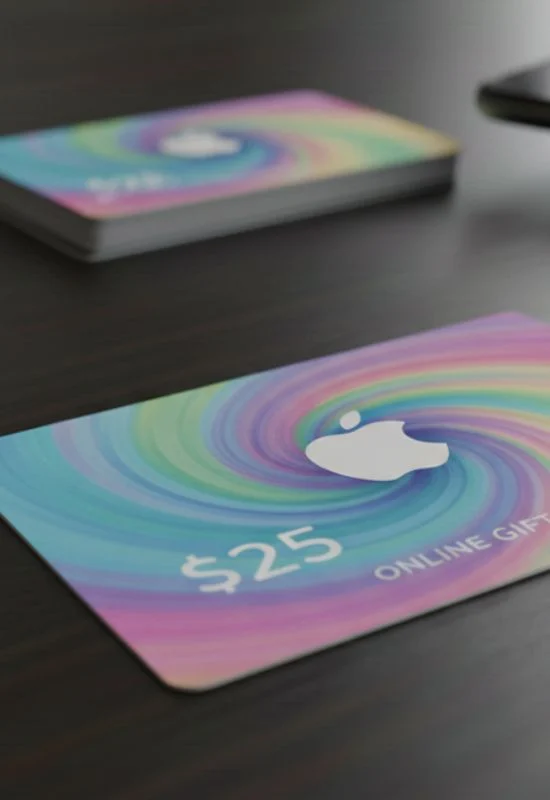
How To Use $25 Apple Gift Cards Online?
Step 1: Redeem the Gift Card Code
You can do this easily on your iPhone, iPad, or Mac.2
Find the Code: Locate the 16-digit code on the back of the physical card (usually starts with ‘X’ and is hidden under a scratch-off label) or in the email for a digital card.3
Open the App Store: Launch the App Store app on your Apple device.4
Go to Profile: Tap the sign-in button or your profile photo at the top of the screen.5
Redeem: Tap “Redeem Gift Card or Code.” (If you don’t see this, make sure you are signed in with your Apple ID.)6
Enter Code:
You can select “Use Camera” to scan the code if you have a physical card.7
Or, select “Enter Code Manually” and type the 16-digit code exactly as it appears.8
Confirm: Tap “Redeem.”9
The $25 is now added to your Apple Account Balance and is ready to use.10
Step 2: Use the $25 Balance
Your balance is the default payment method for all eligible purchases across the entire Apple ecosystem.
What You Can Buy Online:
| Category | Examples |
| Digital Content | Apps, games, in-app purchases, movies, music, and books from the App Store, iTunes Store, Apple TV app, and Apple Books. |
| Subscriptions | Apple Music, Apple Arcade, Apple TV+, and any subscriptions billed through the App Store (e.g., Netflix, Spotify). |
| Apple Services | iCloud+ storage upgrades, AppleCare+ (for some products/regions). |
| Products & Accessories | Products and accessories purchased directly from apple.com or the Apple Store app. |
How It Works at Checkout:
The funds are applied automatically:
For Digital Purchases (Apps/Subscriptions): The $25 is used first. If an app costs $5, your balance is reduced to $20.
For Physical Purchases (Apple.com): When you check out for an accessory or product on the Apple website, the $25 will be applied immediately as a credit toward the total cost. If the total is more than $25, you pay the remaining balance with a debit or credit card.