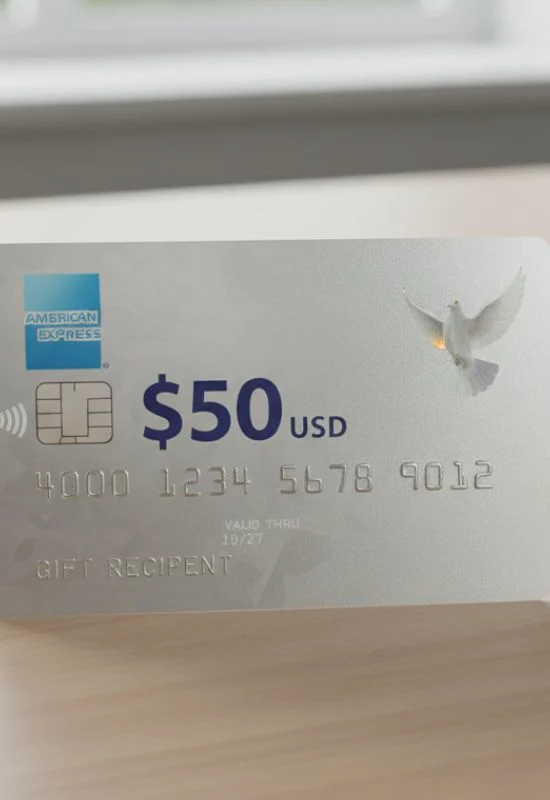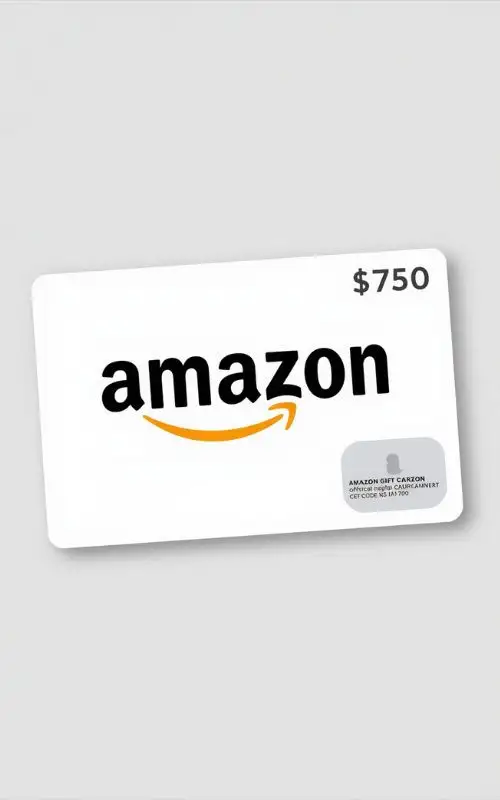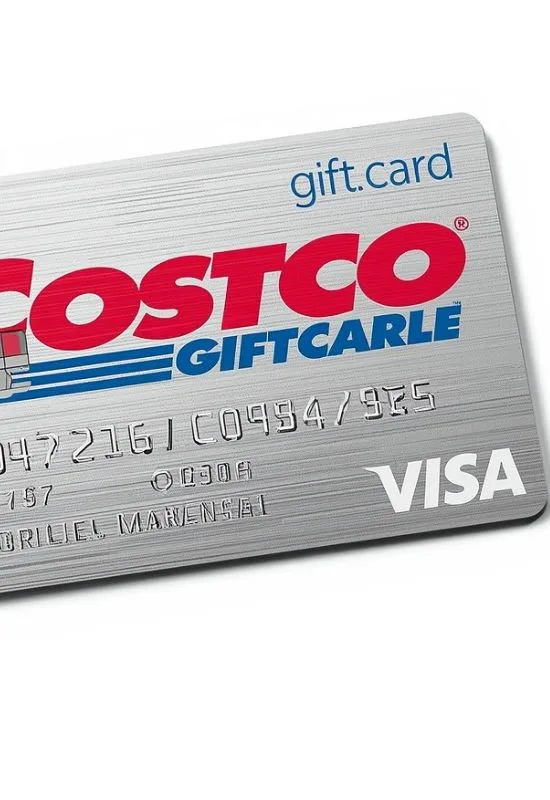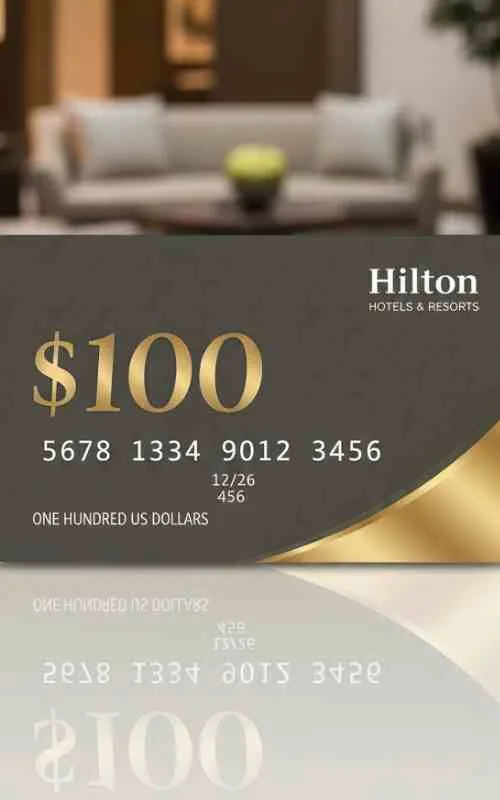
$100 Gift Voucher | | Instant Digital Delivery & No Fees

How To Use $100 Gift Voucher?
1. Identify Your Voucher Type
Store-Specific: Can only be used at that specific retailer (e.g., a $100 Sephora voucher).
Prepaid/Open-Loop: Works like a debit card anywhere that brand is accepted (e.g., a $100 Vanilla Visa).
Multi-Store: Works at a group of partner retailers (e.g., “The Card Network” or “One4all”).
2. How to Use It Online
Shop normally and add items to your cart.
Go to Checkout: Look for a field labeled “Gift Card,” “Promo Code,” or “Voucher Code.”
Enter the Code: Type in the unique string of numbers/letters. If there is a silver scratch-off panel, scratch it gently to reveal the PIN or CVV.
Apply: Click “Apply.” The $100 will be deducted from your total.
Note: If the total is more than $100, you will be asked for a second payment method (credit card/PayPal) to cover the rest.
Note: If the total is less than $100, the remaining balance usually stays on the voucher for next time.
More: $100 Target Gift Cards
3. How to Use It In-Store
Present the Voucher: At the register, show the physical card or the digital barcode on your phone.
Scan/Swipe: The cashier will scan the barcode or swipe the card through the terminal.
Check for PIN: If it’s a physical card, you might need to provide the 4-digit PIN found on the back.
Partial Payment: If you only spend $40, the cashier will give you back the card with $60 remaining. Always ask for a receipt to confirm the new balance.
4. Important “Checklist” Before You Buy
Check the Expiry Date: Some vouchers expire after 12–36 months. If it’s expired, the funds are usually forfeited.
Register the Card: For prepaid Visa/Mastercards, you often need to register your Zip Code on the issuer’s website to make online purchases.
Check Balance First: Visit the website printed on the back of the voucher to ensure it actually has the full $100 loaded. If you try to spend $100.01 and only have $100.00, the transaction may be declined without explanation.
Summary Table: Voucher Quick-Fixes
| Problem | Likely Reason | Solution |
| Declined Online | Missing Zip Code | Register the card on the issuer’s website. |
| Declined In-Store | System “Timeout” | Ask the cashier to run it as “Credit” instead of “Debit.” |
| Code Not Found | Typo | Check for “0” (Zero) vs “O” (Letter) or “1” vs “I”. |